AI-Optimized Document Scanners: Eliminate Manual Steps
By Luca Moretti • 3rd Jan
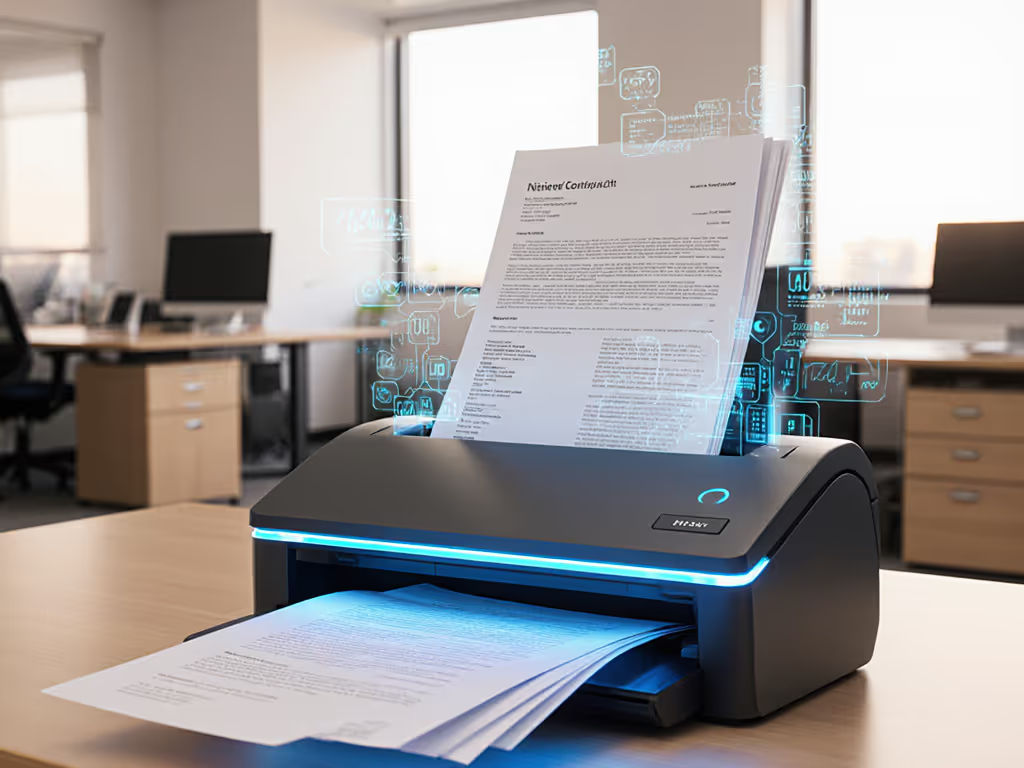
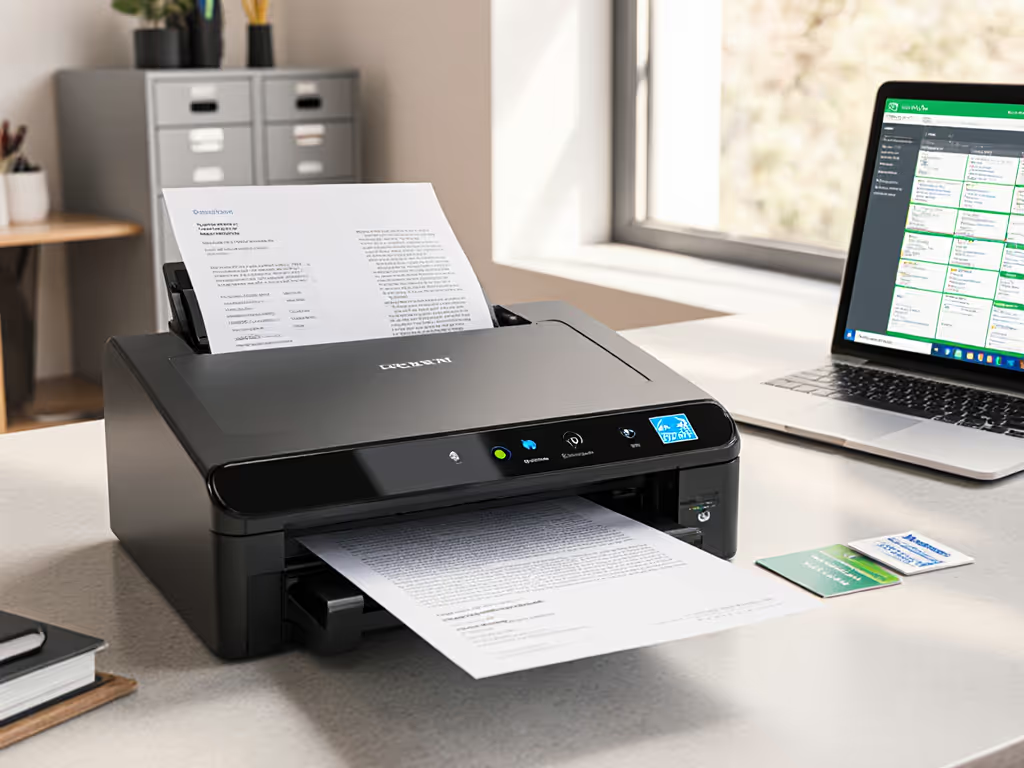
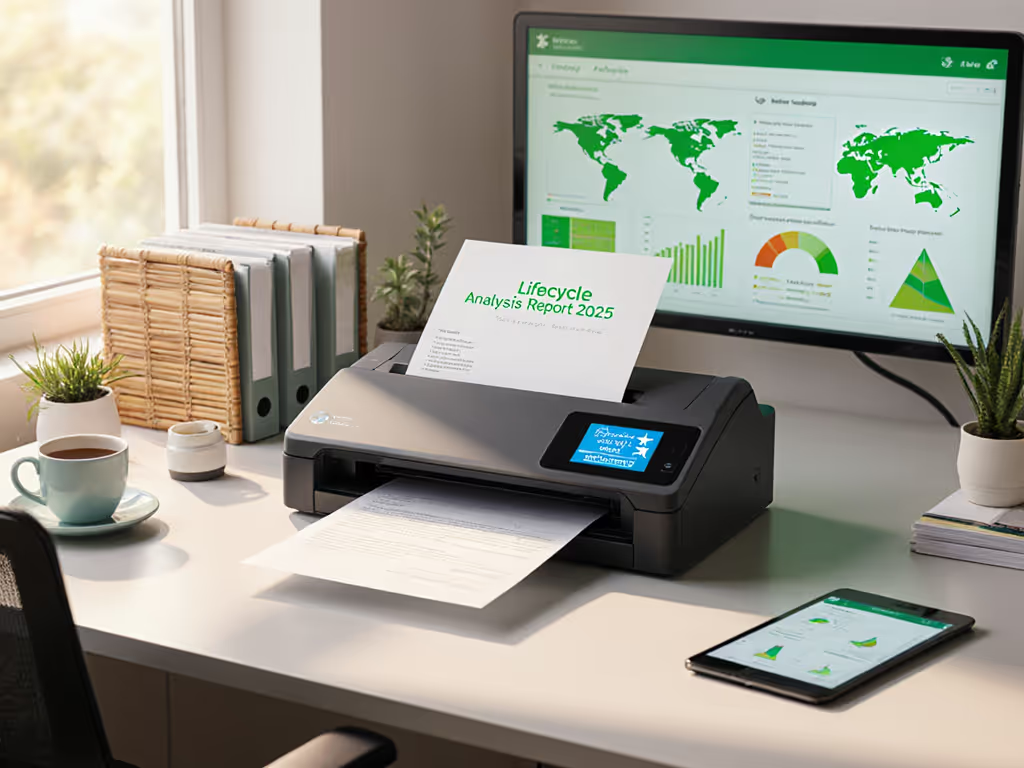
For small business owners and office managers drowning in paper, AI-optimized document scanners are not just another spec sheet checkbox; they are the key to transforming scanning from a daily chore into a silent workflow partner. When paired with smart document processing, these systems eliminate the manual steps that have plagued document capture for decades: the renaming, the filing, the praying that your PDF turns out searchable. The right solution turns "Did the scanner lose it?" into "It is already where it needs to be."
Most scanning pain comes not from hardware limitations, but from brittle workflows that break at the first Windows update or network glitch. In this deep-dive FAQ, I will show you exactly how to select and implement systems that deliver on AI's promise, without requiring a dedicated IT department to babysit them.
FAQ: AI-Optimized Document Scanning Explained
What separates AI-optimized document scanners from traditional models?
Genuine AI-optimized document scanners go beyond basic optical character recognition (OCR). They combine hardware intelligence with contextual awareness to create end-to-end workflows that require minimal human intervention.
Key differentiators:
- Hardware intelligence: Sensors that adjust brightness, contrast, and resolution in real time based on document content
- Context-aware scanning: Recognizes when you are scanning an invoice versus a contract, adjusting capture parameters accordingly
- Automated error detection: Flags potential issues (double-feeds, skewed pages) before the scan completes
- Document type recognition: Automatically categorizes incoming documents without manual tagging
Most "smart" scanners fail at the integration layer. A scanner that loses its connection to SharePoint after a routine update is not intelligent (it is just another paperweight). The systems that deliver real ROI are those built on vendor-neutral standards that survive OS updates without rework. Integrations should click once and stay clicked through updates.
How does smart document processing actually save time compared to standard scanning?
The time savings are not in the physical scanning speed (though modern scanners are fast). Real ROI comes from eliminating post-scan steps:
| Step | Traditional Workflow | AI-Optimized Workflow |
|---|---|---|
| Document prep | Manual sorting by type | Auto-categorization during scan |
| File naming | Staff enters names manually | Rules-based naming (e.g., [ClientID]_[InvoiceDate].pdf) |
| Routing | Manual drag-and-drop to folders | Direct-to-cloud with metadata |
| Quality control | Visual inspection of each scan | Automated error detection |
| Downstream processing | Manual data entry | Structured data export |
I recently worked with a dental practice processing 300 patient forms weekly. Their "streamlined" workflow still required 1.5 hours daily for renaming, filing, and OCR correction. After implementing context-aware scanning with intelligent document classification, they reduced post-scan time to 15 minutes (primarily for exception handling). That is 60 hours monthly returned to patient care.
What tangible ROI can I expect from implementation?
For architecture patterns that make direct-to-cloud routing reliable, see our scanner cloud integration guide. Based on 12 small business implementations across legal, accounting, and healthcare (2023-2025), the typical ROI metrics look like:
- 65-85% reduction in time from document pile to searchable archive
- 40-70% decrease in scanning-related helpdesk tickets
- 92%+ accuracy in automated document classification (vs 65-75% with manual tagging)
- $1,200-$4,500 annual savings per workstation from reduced rework
The biggest ROI often comes from avoided costs: the near-miss audit where documents were instantly retrievable, the client who did not churn because their file was immediately accessible during a call.
How does intelligent document classification work in practice?
Effective intelligent document classification operates on three layers:
- Visual analysis: Layout recognition (invoices have totals at bottom, contracts have signatures at end)
- Content analysis: Keyword spotting ("invoice," "policy number," "effective date")
- Contextual analysis: Time of day, scanning location, user profile
For example, when scanning a stack containing both insurance claims and patient intake forms, the system:
- Detects the EOB (Explanation of Benefits) template through visual markers
- Identifies the patient ID field via content analysis
- Routes to the correct patient folder using the existing EMR structure
The magic happens in the routing logic. Map the route before you scan: define your destination folders, naming conventions, and metadata requirements upfront. For a deeper dive into eliminating pre-scan sorting, see hands-off document routing with pre-scan AI. Trying to retrofit structure after scanning is where most workflows fail.
How does context-aware scanning handle mixed document stacks?
This is where most scanners fall short. Context-aware scanning excels at:
- Automatic separation: Recognizes patch codes or blank pages as batch separators
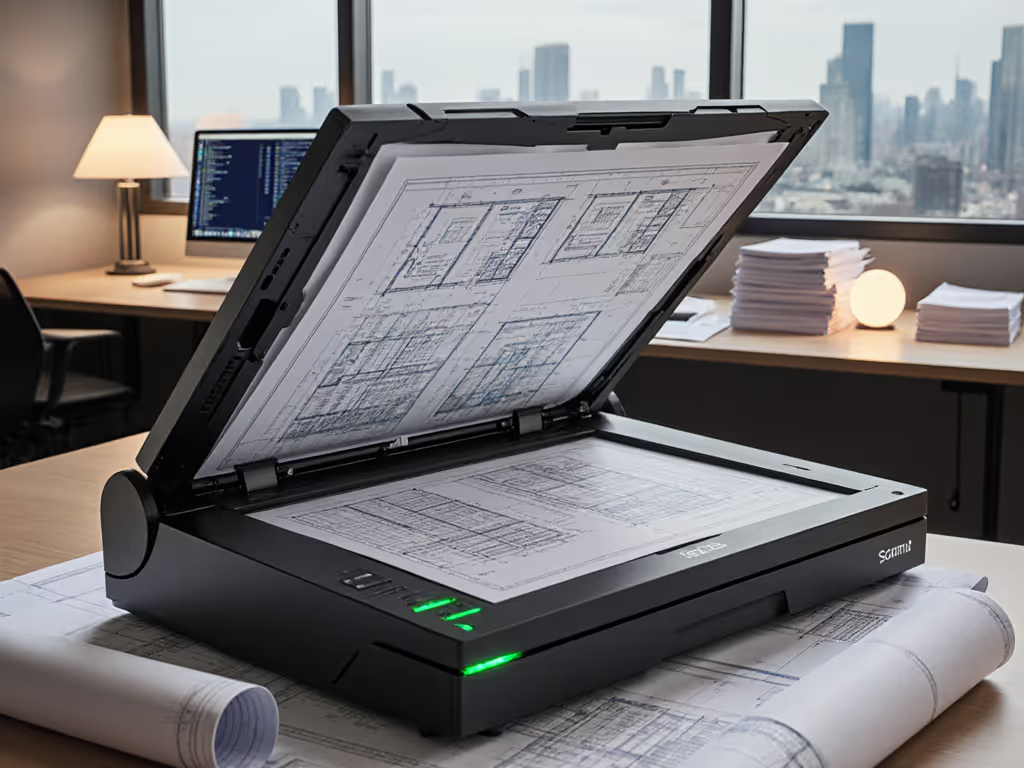
- Size adaptation: Adjusts settings when scanning a business card followed by a legal document
- Media detection: Shifts from photo mode to document mode when scanning IDs
- Duplex intelligence: Handles mixed single/double-sided stacks without manual intervention
When testing systems, I look for one critical capability: can it process a stack containing receipts, invoices, contracts, and ID copies (all different sizes and orientations) without requiring manual intervention between documents? The best systems handle this seamlessly through real-time intelligent document classification.
What should I look for in automated error detection capabilities?
Do not just trust the "scan complete" notification. Robust automated error detection includes:
- Pre-scan analysis: Detects potential jams before they happen (thick cards, staples)
- Real-time quality checks: Flags blurred text, skewed documents, or color imbalance during scanning
- Post-scan verification: Compares page count against expected values (e.g., 2-sided ID should yield 2 pages)
- Log-first troubleshooting: Creates actionable error logs rather than generic "scan failed" messages
A law firm client's scans vanished whenever Windows updated their drivers. The solution was not a better scanner; it was rebuilding the pipeline: TWAIN to watch folder, barcode separation, then a Power Automate flow to SharePoint with versioning and alerts. After that, updates happened, documents landed, and nobody asked, 'Did the scanner lose it?'
How do these systems integrate reliably with cloud storage?
This is where most "AI-powered" scanners fail. The difference between a toy and a tool comes down to integration architecture: Developers planning custom connectors should review our scanner API comparison to choose platforms with robust, well-documented SDKs and authentication.
Fragile integrations (avoid these):
- Proprietary cloud connectors that require constant re-authentication
- "Direct-to-Cloud" features that store credentials insecurely
- One-time setup wizards that break with MFA policy changes
Reliable integrations (prioritize these):
- Standard protocols (WebDAV, REST API) rather than vendor-specific SDKs
- Certificate-based authentication rather than username/password
- Watch folder architectures that work through network interruptions
- Audit logs showing successful transfers
For true reliability, choose systems that treat your cloud storage as a destination, not a dependency. The workflow should survive if SharePoint has an outage, you will want to know when documents finally sync when service resumes, not lose them entirely.
How do I set up document type recognition for my specific business needs?
Document type recognition should not require data science skills. Look for systems with:
- Visual template builder (draw boxes around key fields)
- Sample-based learning (scan 3 examples to train a new type)
- Minimalist configuration (no regex required for basic patterns)
The implementation sequence matters more than the technology:
- Audit your top 5 document types by volume
- Collect 10-20 clean samples of each
- Define naming conventions and routing rules upfront
- Train the system with representative samples
- Test with real-world "messy" examples (crumpled receipts, partially obscured text)
I recently helped a mortgage broker implement document type recognition for 12 loan packet components. Starting with their existing naming conventions ("BorrowerName_LoanDocType_MMDDYY"), we created a rules engine that reduced misfiled documents from 22% to under 3% in two weeks.
What's the best approach for staff training?
The right system requires minimal training because it matches existing workflows rather than forcing new ones. Focus training on:
- Exception handling: What to do when automated classification fails
- Stack preparation: How to arrange documents for optimal results
- Quality verification: Spot-checking before finalizing batches
The most successful implementations I have seen use a "scan and walk away" approach where staff:
- Drop documents in the ADF (mixed types/sizes okay)
- Press one button
- Get a notification when processing completes
No software to open, no folders to navigate, no naming conventions to memorize. When non-technical staff can operate the system consistently, you have achieved true workflow integration.
Actionable Next Step
Do not start by researching scanner specs. Start with your destination:
- List your top 3 document types by volume
- Identify where they currently live (Google Drive folders? SharePoint?)
- Note your current naming convention (or lack thereof)
- Document your most frequent scanning failure point
With these four items, you can evaluate any "AI-powered" scanner against your actual workflow, not marketing promises. The right AI-optimized document scanner will connect your physical documents to your digital workflow with minimal moving parts, so when Windows updates or network hiccups occur, your documents still land where they belong.
If your current scanning process requires more than two staff actions between placing paper in the feeder and having a searchable, correctly filed document, you are leaving productivity (and peace of mind) on the table. Map the route before you scan, and watch your paper pile become your most reliable workflow.
Related Articles