Thermal Receipt Scanners: Integration & Specs FAQ
By Luca Moretti • 28th Apr
When you're managing stacks of receipts, invoices, or long thermal paper rolls across a small team, the scanner you choose becomes infrastructure, not just hardware. Long-receipt capability and thermal paper scanner specifications matter most when they connect reliably to your cloud stack and stay connected through OS updates and network changes. This FAQ digs into what thermal receipt scanners actually do, how to integrate them without fragile workarounds, and which specs prevent the most common workflow breaks.
What Are Thermal Receipt Scanners, and How Do They Differ from Standard Scanners?
Thermal receipt scanners are purpose-built to handle rolls and fan-fold thermal paper (the kind that curls, fades, and resists standard automatic document feeder, or ADF, logic). Unlike a general-purpose flatbed or sheet-fed scanner, a thermal-capable device manages paper that's often wrinkled, prone to jams, and printed with fading thermal dye.
The key difference is mechanical: thermal paper requires gentler feed rollers and often narrower scan heads tuned to capture low-contrast thermal prints before the image degrades. This is not a marketing distinction (thermal paper has a real lifespan issue). Once scanned, that receipt image is your only copy; if the OCR fails, you've lost legibility forever. For preservation tips and model picks, see our guide to saving fading thermal receipts.
Standard consumer scanners typically flatten and assume crisp black text. Thermal receipt digitization demands different calibration: sensitivity to faint thermal dye, fast scan speeds to batch-process high-volume runs, and immediate cloud routing so the original receipt can be archived or recycled without risk.
Why Do Integrations Matter More Than Raw Specs?
This is where most advice fails. A scanner claiming "40 ppm" means nothing if the Wi-Fi stalls, the cloud connector breaks on your next OS update, or naming conventions require manual renaming before filing.
I learned this viscerally working with a small law firm whose scans vanished whenever Windows updated. They had a perfectly fast Epson scanner, but the network folder path died. We rebuilt it: TWAIN to local watch folder, barcode separation via batch script, then a Power Automate flow to SharePoint with versioning and alerts. After that, updates happened, documents landed, and nobody asked, "Did the scanner lose it?" because the pipeline was vendor-neutral and simple.
Integrations should click once and stay clicked through updates. Choose a scanner whose driver supports SMB (Windows file shares), not just proprietary cloud apps. Test Wi-Fi reliability over 72 hours, not just on day one. Verify that OCR metadata flows into your cloud storage, not just into the scanner's own dashboard.
What Thermal Paper Scanner Specifications Should I Prioritize?
Optical Resolution and Thermal Capture
Thermal paper prints at lower contrast than laser or inkjet. You need at least 300 dpi optical resolution; 400+ dpi is safer for faint thermal dyes. More important than the headline number: ask whether the scanner's sensor specifically handles thermal paper contrast. This is usually buried in the datasheet as "thermal imaging" or "low-contrast mode."
Feed Mechanism and Jam Recovery
Rollers wear fastest in high-volume thermal scanning. Specs to check:
- Rated page capacity per consumable set (often 50,000-100,000 pages before roller replacement)
- Automatic document feeder (ADF) depth to accommodate long receipts (some roll 20+ inches)
- Multi-feed detection to prevent jamming on staples or wrinkled paper
- Jam recovery mode that lets you remove stuck paper without losing scan position
If the manual says "replace rollers every 12 months," that means real money for a small office. Look for scanners with longer intervals or user-replaceable pads.
Connectivity: Wi-Fi Reliability and Protocol Support
This is integration territory. The scanner must support: If Wi-Fi stability is a concern, compare options in our reliable wireless scanning systems guide.
- 802.11ac or Wi-Fi 6 for consistent 5 GHz connectivity
- Wired Ethernet fallback (not just USB) to bypass Wi-Fi dropout
- SMB 3.0 for direct file routing to Windows shares and OneDrive/SharePoint
- Secure WebDAV or OAuth for cloud apps without storing passwords in the scanner
If the scanner only offers a proprietary mobile app or web dashboard, you're adding a manual step. Use the simplest connector that moves files directly from the scanner to your existing folders.
OCR Engine and Metadata Output
Thermal receipt preservation is useless without searchable PDFs. Check:
- Embedded OCR vs. cloud-based: Embedded (on-device) OCR is faster and offline-safe. Cloud-based OCR may be more accurate for thermal paper but adds latency and dependency.
- Output format: Insist on PDF/A-3 (archival-grade, allows embedded metadata) or at least standard PDF with embedded text layer.
- Barcode recognition: If you batch receipts by barcode, the scanner must recognize and parse barcodes into metadata fields (invoice number, date, vendor ID).
- Blank page auto-removal: Thermal paper often has partial pages; ensure the OCR engine removes true blanks without deleting single-page receipts.
How Should I Route Thermal Receipt Scans to My Cloud Storage?
The short answer: don't rely on the scanner's built-in cloud apps. They're usually outdated, single-platform, and tied to the vendor's ecosystem.
Instead, set up a watch-folder pipeline: For end-to-end patterns and pitfalls, use our scanner-to-cloud integration guide.
- Scanner stores to local SMB share (Windows file server or NAS) with a naming convention:
YYYYMMDD_VendorName_ReceiptID.pdf - Automation layer (Power Automate, Zapier, or Node.js script) monitors that folder every 5 minutes
- Logic routes files by keyword or barcode to the right OneDrive/SharePoint site, folder, and metadata fields
- Cleanup moves processed files to archive or deletes them after 30 days
This approach survives OS updates, cloud provider API changes, and team role changes because the watch folder is dumb storage. The logic lives in an automation platform your team already uses.
What About Mixed-Media Scanning: IDs, Cards, Long Receipts?
Thermal paper scanners are optimized for uniform thermal rolls. Mixed-media introduces complexity:
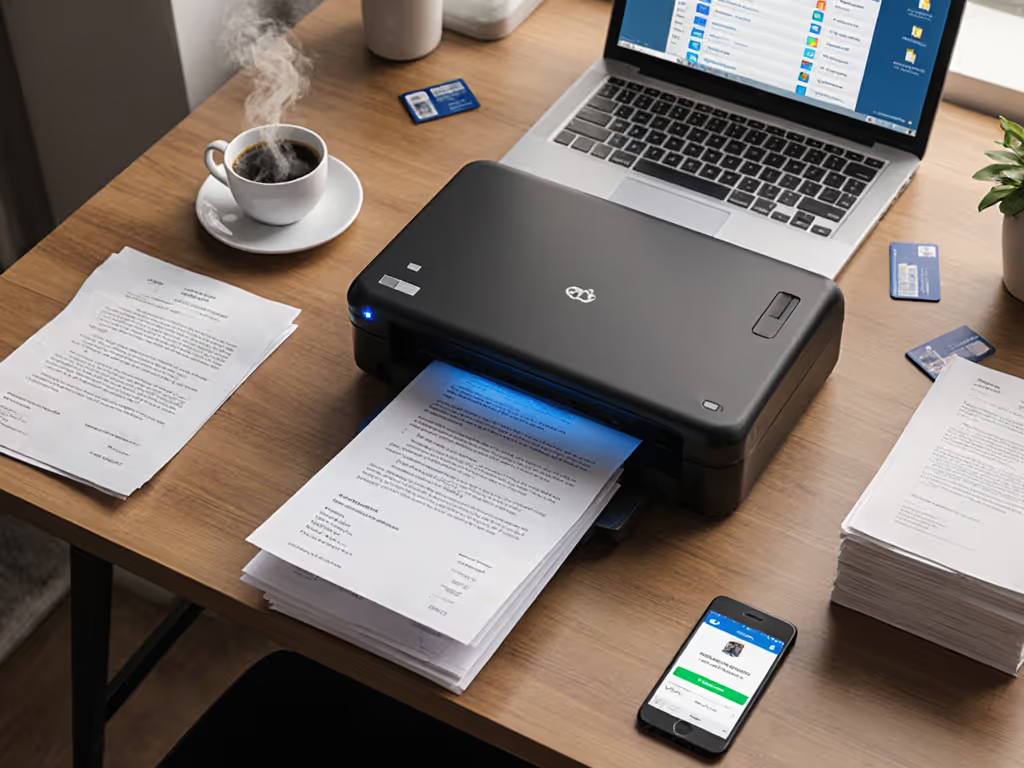
- Thermal receipts + business cards: Cards are thicker and non-thermal; they need different feed pressure. Some thermal scanners will jam on cards. Verify the ADF supports a "thick media" mode or variable pressure.
- Long receipts (20+ inches): Check the maximum ADF length. Some thermal scanners top out at 14 inches. If you need longer, consider a specialized receipt scanner with a deeper feed path.
- Carbon copies or poor-quality carbons: Thermal captures the original layer but struggles with dark carbon impressions. Pre-sort if possible, or test a sample batch before committing.
Realistic guidance: don't ask one device to do everything. Use a thermal scanner for receipts, a flatbed for IDs and cards. Keep the workflow simple.
What's the True Cost of Ownership for Thermal Receipt Scanners?
Beyond the initial purchase:
- Consumables: Replacement rollers ($30-$80), pickup pads ($15-$30), feed rollers ($20-$60). At 500 pages per week, you'll replace rollers every 18-24 months.
- Driver and firmware updates: Usually free, but budget 2-4 hours per year to test updates on a non-production device first.
- OCR licensing: If you're using third-party OCR (not embedded), expect $50-$200/year per device.
- Cloud integration tools: Power Automate Premium is $15/user/month; Zapier runs $25-$100/month depending on task volume.
A thermal scanner at $400-$800 + consumables ($150/year) + automation ($30-$50/month) works out to roughly $1,000-$1,200 in year one, $400-$600 in years two and beyond. For a small office processing 500+ receipts per month, that ROI is real (if the integrations are rock solid).
What Red Flags Should I Watch for When Evaluating a Thermal Receipt Scanner?
- Windows-only drivers: Avoid. Insist on native Mac support or at least TWAIN over USB as a fallback.
- Proprietary cloud integration only: You're locked into the vendor's ecosystem and forced to rework when they deprecate the app.
- No SMB or file-share routing: The scanner can't talk directly to your storage; you're forced to use the vendor's dashboard or a clunky bridge app.
- High jam rates reported in reviews: More than one jam per 1,000 pages is a workflow killer. Check Reddit and user forums, not just vendor claims.
- Expensive or hard-to-find consumables: If replacement rollers cost $100 and ship from overseas, you're hostage to the vendor.
- No barcode or OCR metadata output: If the scanner just creates PDFs with no routing intelligence, you're adding manual naming steps downstream.
What's Next? Where Should I Explore Further?
If you're considering thermal receipt scanners, start here:
- Audit your current workflow: Count receipts per week, identify which cloud services you use (SharePoint, Google Drive, Dropbox), and document every manual naming or filing step. That's your baseline.
- Test a sample device: Borrow or rent a thermal scanner for a week. Run 500 mixed receipts through it, integrate it to your cloud storage via SMB, and measure time-to-file and OCR accuracy. Don't buy on spec.
- Map your integration stack: Decide whether Power Automate, Zapier, or a simple script will handle routing. Test that connection before you deploy the scanner.
- Document consumables and warranty: Get the datasheet, calculate roller life for your volume, and compare replacement costs across vendors.
- Train one user end-to-end: Create a standard operating procedure that anyone on your team can follow in under five minutes. If it takes longer, your pipeline is too brittle.
The goal is simple: a thermal receipt scanner that keeps receipts flowing from paper to searchable, filed, and forgotten without manual intervention. When you've hit that mark, you've solved a real friction point in your business. Everything else is optimization. To keep throughput high and jams low, follow our document scanner maintenance guide.
Related Articles