Best Mobile Scanners: Seamless Workflow for Non-Tech Users
By Taye Okonkwo • 9th Oct
When your front desk volunteer dreads Monday mornings because of the paper mountain, or when your bookkeeper spends hours manually sorting scanned receipts instead of working with clients, you don't need just the best document scanner, you need a solution that actually works for your entire team. After two decades of watching scanners fail in real offices, I've learned that true mobility isn't about weight or battery life. It's about whether your least experienced staff member can turn a messy stack into organized, searchable documents before their coffee gets cold. Let's explore how to build scanning workflows that actually stick.
Why "mobile" doesn't mean what you think it does
You're probably imagining a device you can slip in your laptop bag. But in reality, true mobility means your scanning process travels between team members without breaking. A scanner that required three different drivers to work across your staff's Macs, Windows machines, and tablets wasn't mobile (it was a paperweight waiting to happen).
The term "mobile film scanner" gets tossed around a lot, but for most small offices, what you really need is consistent performance across devices and locations. True mobility means:
- Staff can scan from any workstation without hunting for drivers
- Documents route correctly whether scanned from the front desk or a remote location
- Training doesn't need constant refreshes because someone changed a setting
At a nonprofit intake office I worked with, "mobile" meant volunteers could process applications during lunch breaks using just one button. We mapped their actual steps, added barcode coversheets, and built profiles that routed documents to the right Google Drive folders with OCR tags. Their backlog vanished in one afternoon (not because we bought expensive hardware, but because we designed for the person least comfortable with technology).
One button, predictable result. That's the standard your scanning workflow should meet.
What makes or breaks scanning for non-technical staff
Your team doesn't need to master scanner settings, they need to get their actual work done. When I watch staff interact with scanners, three failure points consistently emerge:
- The naming nightmare: "Scan_Q3_Invoice_0923_Final_v2.pdf" shouldn't require a manual
- The cloud guessing game: Not knowing which folder their documents actually landed in
- The Monday morning panic: When weekend paper piles overwhelm the system
The turnaround happens when we stop training people to use scanners and start designing scanners to work for people. At that nonprofit we built one-button profiles with clear labels like "New Client Packet" and "Insurance Forms". Volunteers stopped dreading scanning because they knew exactly what would happen each time they pressed that button.
If it's fiddly, it won't survive Monday morning.
This is where the right hardware makes all the difference. Let's look at specific solutions that deliver true simplicity.
Which scanners actually deliver on cloud connectivity promises?
You've probably been burned before by "cloud-ready" scanners that required coding skills to connect. Real cloud connectivity means scanning directly to your existing folders without intermediate steps. No email attachments to download, no manual drag-and-drop, no permission errors. For setup steps and best practices, see our scanner cloud integration guide.
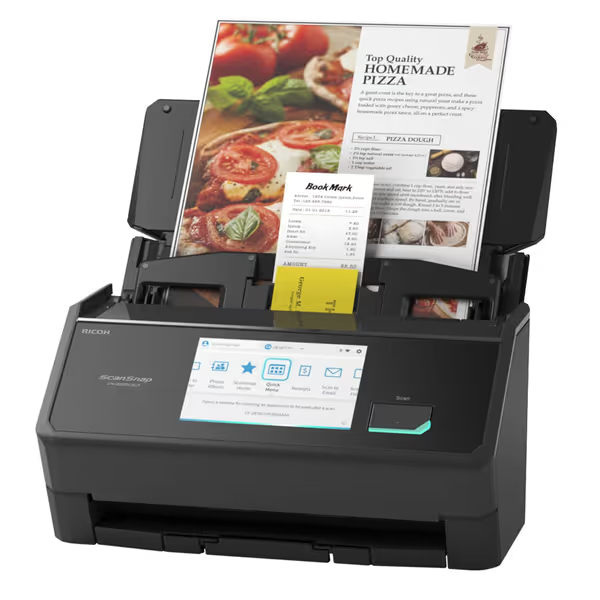
ScanSnap iX1600 Wireless Document Scanner
Automated, high-speed scanning for effortless digital filing and cloud integration.
$419.99
Scanning Speed:45 ppm (duplex)
Scanning Speed:45 ppm (duplex)
Pros
Quickly digitize mixed documents with advanced jam prevention.
Customizable profiles for direct-to-cloud and app routing.
Intuitive touchscreen simplifies complex scanning tasks.
Cons
Wireless connectivity can be inconsistent for some users.
Higher price point compared to basic scanners.
Handles 50 pages in less than a minute; easy to use with excellent duplex scanning.
Handles 50 pages in less than a minute; easy to use with excellent duplex scanning.
The ScanSnap iX2500 stands out because it treats cloud routing like breathing, effortless and automatic. Instead of fighting with folder paths, you create visual profiles on its large touchscreen. Tap "Client Intake" and your documents flow directly to the right Google Drive folder with searchable text already added. Its ScanSnap Cloud service handles authentication securely, so staff never see confusing login prompts.
What makes this work for non-technical teams:
- No computer required: Scan directly to cloud services
- Touchscreen profiles: Large icons instead of text menus
- Automatic OCR: Every scan becomes searchable immediately
- Seamless mobile office solutions: Works with iOS and Android apps that mirror the desktop experience
I've seen this setup reduce filing time from 20 minutes to 2 minutes per client packet in law offices. The magic isn't in the specs, it's in how few decisions staff have to make.
How to handle messy document stacks without constant babysitting
Real office scanning rarely involves pristine, single-size papers. You're dealing with receipts taped to invoices, business cards tucked in packets, and occasionally a coffee-stained form. Most scanners choke on this reality.
Look for hardware that handles mixed stacks intelligently:
- Multi-feed detection that actually stops before damage occurs
- Adjustable paper paths for thick cards and long receipts
- Auto-crop that recognizes different document types in one batch
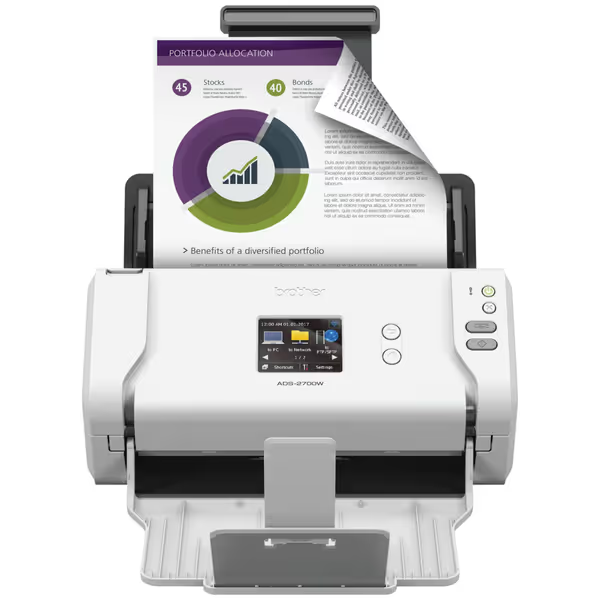
Brother ADS-2700W Wireless Document Scanner
Streamline document workflows with fast, secure, and versatile scanning options.
$530
Daily Duty Cycle3,000 pages
Daily Duty Cycle3,000 pages
Pros
Fast, high-quality duplex scanning for efficient workflow.
Versatile connectivity (Wireless, Ethernet, USB) and multi-OS support.
Secure features (SSL/TLS, Settings Lock) for compliance.
Cons
Wireless connectivity can be inconsistent for some users.
Software functionality receives mixed reviews.
Customers find the scanner fast, efficient, and of good quality, appreciating its compact size and value for money. They praise its ease of setup and scanning capabilities, with one customer noting it can handle over 200,000 pages without issues. The functionality and connectivity receive mixed reviews - while the software works well, some report it doesn't work correctly, and though the wireless feature is great, many experience connectivity issues.
Customers find the scanner fast, efficient, and of good quality, appreciating its compact size and value for money. They praise its ease of setup and scanning capabilities, with one customer noting it can handle over 200,000 pages without issues. The functionality and connectivity receive mixed reviews - while the software works well, some report it doesn't work correctly, and though the wireless feature is great, many experience connectivity issues.
The Brother ADS-2700W solves this with thoughtful engineering. Its 50-sheet feeder handles everything from business cards to legal documents without constant adjustments. But the real win for non-technical teams is the one-touch scanning: set up profiles like "Expense Reports" or "Patient Forms" on the color touchscreen, and staff just drop papers in the feeder. The scanner handles:
- Automatic color detection
- Blank page removal
- Background cleanup
- Text enhancement for poor-quality originals
At a dental office I worked with, they used to have three different people re-scan each patient packet. After implementing the Brother scanner with custom profiles, one receptionist handles all scanning during slow periods (no training required beyond "press this button when you have paperwork").
What's the simplest path to searchable PDFs every time?
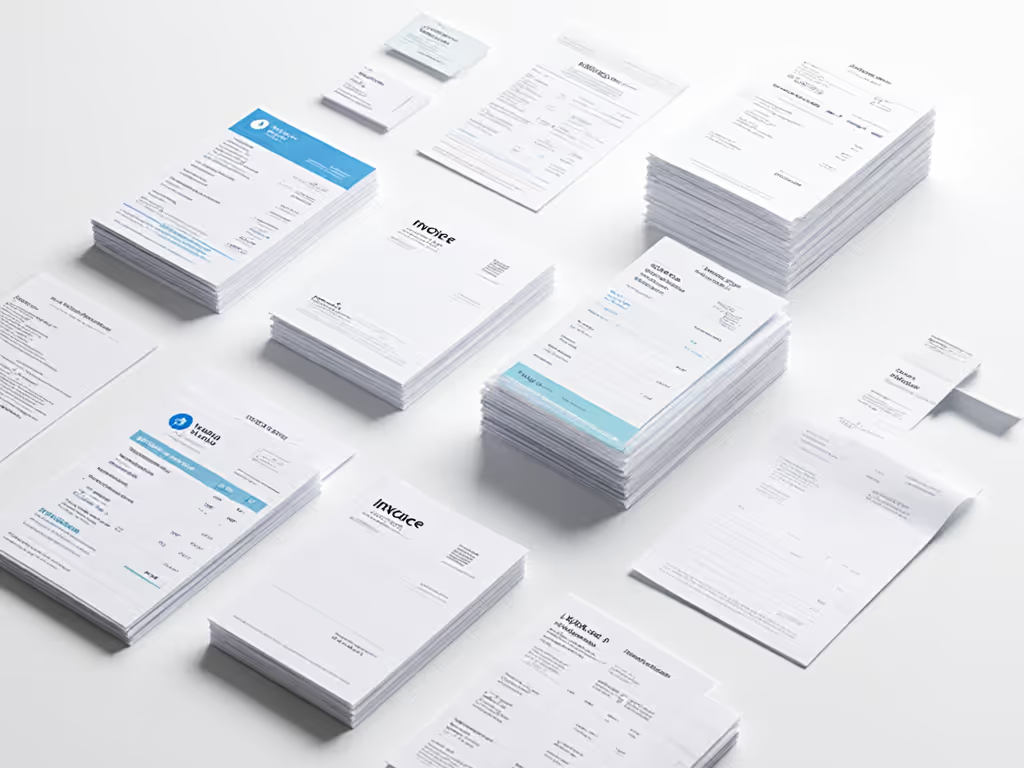
You don't need to pay for OCR software if your scanner handles it invisibly. The best systems convert every scan to searchable PDFs without separate steps or confusing settings.
Key indicators of reliable OCR:
- Handles colored backgrounds and stamps without manual cleanup
- Reads handwritten notes with reasonable accuracy
- Preserves original layout while making text searchable
- Works consistently across different lighting conditions
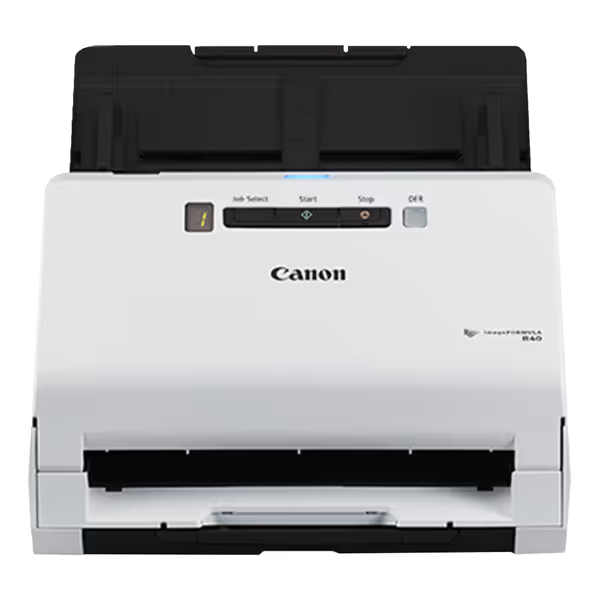
Canon imageFORMULA R40
Fast, high-quality duplex scanning for various documents, Windows and Mac.
$239
Scanning Speed (Duplex)Up to 80 ipm
Scanning Speed (Duplex)Up to 80 ipm
Pros
Rapid duplex scanning of diverse document types.
User-friendly setup and high-quality results.
Includes Canon software, Readiris PDF/OCR, and Cardiris.
Cons
Known software compatibility issues with Mac Ventura/Windows 10.
Reports of TWAIN driver errors and scanner malfunction.
Customers find the scanner easy to use, with quick setup and high-quality results, and appreciate its fast scanning speed and crisp picture quality. The functionality receives mixed feedback - while the automatic document feeder works flawlessly, some report the scanner not working properly. Moreover, the software compatibility is problematic, as it doesn't work with Mac Ventura OS and Windows 10, and customers report TWAIN driver errors. Value for money opinions are divided between those who consider it excellent value and those who find it overpriced.
Customers find the scanner easy to use, with quick setup and high-quality results, and appreciate its fast scanning speed and crisp picture quality. The functionality receives mixed feedback - while the automatic document feeder works flawlessly, some report the scanner not working properly. Moreover, the software compatibility is problematic, as it doesn't work with Mac Ventura OS and Windows 10, and customers report TWAIN driver errors. Value for money opinions are divided between those who consider it excellent value and those who find it overpriced.
The Canon imageFORMULA R40 delivers this simplicity through its bundled software that "just works" for common office tasks. Unlike scanners that require you to choose between "Text" and "Photo" modes, its sensors automatically adjust to document content. Scan a stack containing both typed contracts and handwritten notes, and you'll get one cohesive PDF where everything is searchable.
What makes this ideal for small teams:
- One-step scanning: Press the start button, documents flow through
- Mac and Windows ready: No driver headaches for mixed environments
- Handles long documents: Up to 118 inches in one scan
- Consistent results: Less babysitting means more productivity
A bookkeeping firm reduced invoice processing time by 70% after implementing this scanner. Their secret? They created a "New Vendor" profile that automatically named files with vendor names and dates, no manual entry required.
How to build scan profiles that survive busy Mondays
Your scanning setup should work reliably even when your most experienced staffer is out sick. That means profiles need to be:
- Visually obvious (large icons, not text menus)
- Pre-tested for common errors (wrong document orientation, mixed paper sizes)
- Documented simply (one-page cheat sheet taped next to the scanner)
Most offices fail here by making scanning too flexible. When staff have to choose between five similar settings, they'll inevitably pick the wrong one. Instead, create profiles for specific outcomes:
- "Client Onboarding Packet"
- "Expense Receipts"
- "Insurance Claims"
Each profile should handle:
- Automatic file naming
- Correct destination folder
- Necessary OCR and optimization
- Special handling for expected document types
One button, predictable result. When your least technical person can confidently choose the right profile without supervision, you've built a system that scales.
I've used this approach with scanners from all three brands featured here. The common thread? Setup time investment pays exponential returns in daily reliability. A fifteen-minute profile configuration session prevents hours of weekly frustration.
Your action plan for scanner success
Don't buy another scanner until you've mapped your actual paper workflow. Grab a stack of real documents your team handles this week and walk through these steps:
- Identify your bottleneck: Is it naming? Routing? OCR quality?
- Match needs to scanner strengths:
- For mixed stacks and zero-computer scanning: ScanSnap iX2500
- For budget-conscious offices with moderate volume: Brother ADS-2700W
- For straightforward office scanning with reliable duplex: Canon imageFORMULA R40
- Test with your actual documents before purchasing
- Build one profile that solves your most urgent pain point
Then teach just one person to run that profile. If they struggle, adjust your setup (not their training). True mobility means your scanning process works consistently whether handled by your tech-savvy intern or your busiest staff member during crunch time.
The best mobile scanner isn't the one with the most features, it's the one your team actually uses correctly every day. When your scanner disappears into your workflow instead of dominating it, you'll know you've found the right fit.
One button, predictable result. Start there, and everything else falls into place.
Related Articles