What DPI Do Courts Require? Legal Document Scanning Standards
By Mei-Ling Tan • 19th Mar
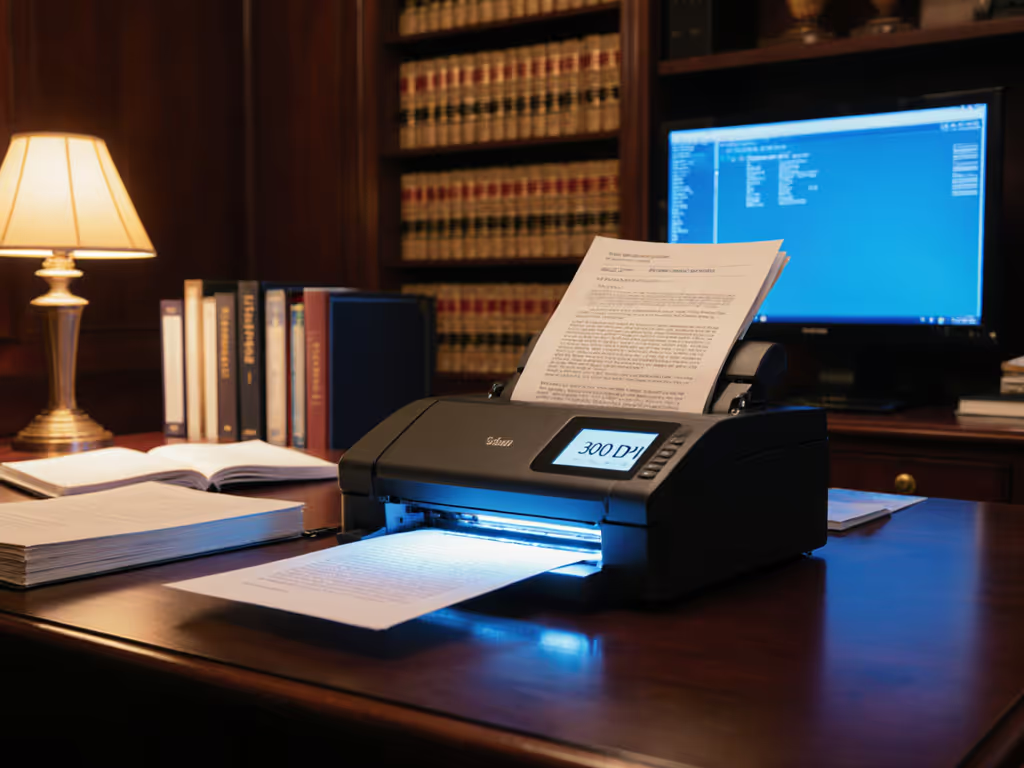
When you're preparing documents for court filing or legal proceedings, legal document resolution requirements and scanner DPI for court evidence are not optional details. They are control gates. Courts set these standards for a reason: to ensure that documents remain legible, authentically reproducible, and compliant with archival requirements. If your firm or office has never audited its scanning workflow against these requirements, the gap between what you think you're submitting and what the court actually receives may be wider than you expect.
This article cuts through the marketing noise and explains what courts actually mandate, why the standards exist, and how to implement them reliably in practice.
What Is the Minimum DPI Courts Require?
The answer is straightforward: 300 dots per inch (DPI) is the court-mandated minimum across U.S. federal and most state systems. This is not a suggestion or a "best practice" recommendation. It is a hard compliance threshold.
Federal courts using the CM/ECF (Case Management/Electronic Case Files) system, state appellate courts, county clerk offices, and e-filing platforms consistently cite 300 DPI as the floor. If you scan at 200 DPI or 150 DPI, common "default" settings on consumer-grade devices, your documents will be rejected or you will be ordered to re-file, creating delay and rework. That friction costs time, credibility, and often money.
Why 300 DPI, Not Higher?
A skeptical question worth asking: if higher DPI is available, why not scan at 600 DPI for extra safety? The answer reveals how courts balance competing interests: file size, archive sustainability, and document legibility.
Scanning at 600 DPI or higher produces images that are often unnecessarily large. A 300 DPI image in black and white is legible to the human eye and meets forensic document scanning standards for legal admissibility. Courts impose maximum file sizes (typically 12 MB per filing in federal systems) precisely to prevent submission of oversized images that clog storage, slow navigation, and complicate long-term archival. Scanning at 600 DPI on a 50-page filing would quickly violate that ceiling, forcing you to re-scan or split the submission.
Reliability is a control, not a nice-to-have in regulated workflows.
Adhering to 300 DPI ensures your documents will pass validation checks the first time, remain accessible across decades of court technology migrations, and not trigger technical rejections that halt your case.
Does Black-and-White Scanning Really Matter?
Yes. Courts do not accept color scans unless the original document color is legally material to the case (e.g., a photograph of a crime scene, a medical chart with color-coded fields). For ordinary documents (contracts, letters, invoices, wills, depositions), black and white is mandatory.
The reason is twofold: control and sustainability. Black-and-white images compress to roughly one-third the file size of grayscale or color images, keeping filings well within file-size limits. More critically, court archival standards require black and white to ensure long-term preservation and prevent data drift as storage formats evolve.
A common mistake is confusing grayscale with black and white. Grayscale is still color data, it simply removes the color channels. Do not scan in grayscale. Set your scanner to "Black and White" or "Line Art" mode explicitly.
What Role Does File Format Play in Legal Compliance?
The format question depends on the court and the document type. Most courts accept PDF or TIFF for scanned images. However, there is a critical exception: legal-size documents (8.5" × 14") must remain as TIFF or be scanned at legal size and NOT converted to PDF before filing. Converting a legal-size original to PDF will truncate it to letter size (8.5" × 11"), cutting off the bottom of the page. That is a disqualifying error.
Some courts also mandate PDF/A format for long-term archival. PDF/A embeds fonts and removes external links, making the document self-contained and resistant to format obsolescence. If your court requires PDF/A, your scanning software must support it or you will need to convert after scanning (an extra step and a potential point of failure).
Document the exception path before you encounter it. Know your court's specific file format rules, and test your scanning and conversion workflow on a sample batch before you file live documents.
Why Must Scanned Documents Be Text-Searchable?
Most state court rules and federal systems require that scanned exhibits be text-searchable "so far as is feasible". This means you must apply Optical Character Recognition (OCR) to your scanned images so that the hidden text layer makes the document keyword-searchable in the court's database and in discovery tools used by opposing counsel.
OCR is not optional, and it is not risk-free. To implement dependable searchability, follow our reliable OCR guide. Poor-quality OCR (especially on handwritten documents, stamped records, degraded originals, or multi-column layouts) will produce garbled or missed text. Before applying OCR, remove metadata from your files to prevent embedded comments or annotations from polluting the final document. Critically, the OCR layer must be hidden and must not replace the original image. The image must remain the authoritative version; the OCR layer is search-only.
If your OCR tool is embedded in your scanner driver and cannot be audited or reversed, you lose visibility into what text was captured and what was lost. That introduces compliance and evidentiary risk.
What Are the Most Common Scanning Failures in Court Filings?
Document orientation errors top the list. If a page is scanned upside down or sideways, it will be rejected or require correction. Verify orientation before filing: every page must be in portrait (right-side-up) format.
A second failure mode is illegibility caused by poor original document quality (faint ink, torn pages, folded documents), compounded by inadequate scanner maintenance. If your scanner's glass or feed rollers are dirty or worn, the scanned image will have streaks, shadows, or fading that makes text unreadable. See our scanner maintenance guide to eliminate jams and image defects before they derail a filing. A 300 DPI scan of a dirty original is useless. Cleaning and preventive maintenance are not optional in a regulated workflow; they are control activities.
A third is mixing separate documents into a single file when they should be individual submissions. Courts often require death certificates, notarized orders, and exhibits to be scanned separately, not bundled. Filing them as one upload violates the court's submission rules and triggers rejection.
From my experience auditing scanning workflows in healthcare and legal practices, I have seen a subtle but costly pattern: a "smart" device with built-in auto-crop and blank-page removal that works 95 percent of the time. That 5 percent failure rate (a page truncated because auto-crop set the margin wrong, or a critical signature page removed as a "blank") is not a feature; it is a latent defect. Redundant capture paths, immutable audit logs, and human verification checkpoints are how you catch and prevent these exceptions before they reach the court.
How Do You Ensure Compliance Across Your Team?
Start by documenting your court's specific requirements: DPI, file format, maximum file size, OCR requirement, orientation, and any mandatory cover sheets or metadata fields. Embed those rules into your scanner profiles. Create a reusable profile for "Legal Filing - Court Exhibits" that locks in 300 DPI, black and white, PDF or TIFF format, and OCR on demand. Share it with your staff so that anyone scanning a legal document is using the same settings.
Test the workflow end-to-end before going live: scan a sample legal document, apply OCR, measure the file size, verify searchability, and attempt to file it in your e-filing system. Do not assume that your device's settings will produce compliant output; verify it.
Second, implement a verification step. Before submission to court, open the scanned file and manually inspect at least the first and last pages for legibility, correct orientation, and presence of all content. This is not bureaucracy; it is a control. A 30-second manual check prevents hours of rework and case delays.
Third, retain the original paper documents for a defined retention period (typically as long as your court rules require, often 5-7 years or longer in litigation). If the court later questions the authenticity or accuracy of your scanned copy, you have the original to defend your submission.
Final Thoughts: Scanning Standards as Risk Mitigation
Courts mandate 300 DPI, black-and-white format, and searchability not to burden you but to ensure that digital documents serve the court's mission: accurate, long-term preservation and accessibility of the record. When you comply with these standards reliably, you reduce the risk of rejection, re-filing, and case delay. You also build confidence that your evidence will be as readable 20 years from now as it is today.
The stakes in legal and regulated workflows are high. Invest in a scanner for legal workflows and a workflow that enforces these standards as defaults, not exceptions. Audit your current scanning practice against your court's documented requirements. If you find gaps, correct them before your next filing. Reliability is a control, and controls must be designed and verified, not hoped for.
Related Articles