Retail Document Scanners: POS-Ready Workflow Fix
By Taye Okonkwo • 9th Nov
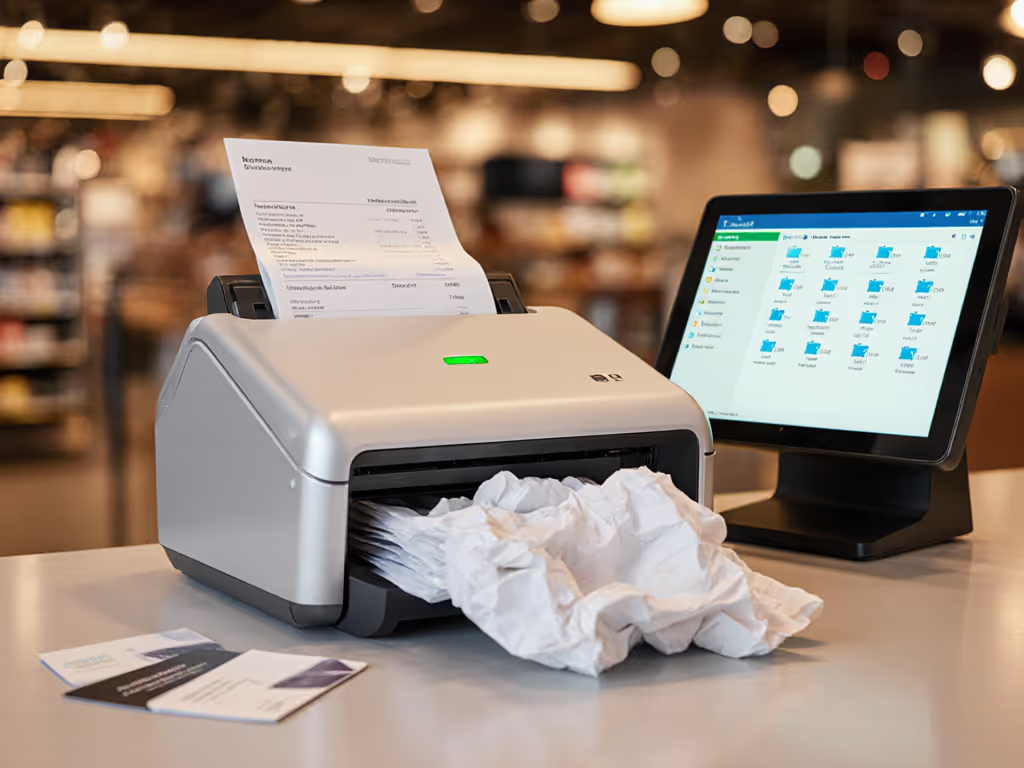
Let's talk about what happens when your retail document scanners can't keep pace with your point-of-sale reality. You've got receipts piling up beside the register, inventory sheets crumpled in drawer corners, and client intake packets threatening to avalanche off the desk. It's not the scanning hardware failing you (it's the workflow behind it). When your POS scanning solutions demand constant babysitting, what should take minutes becomes Monday morning's apology ritual. Today, we'll fix that with low-friction systems that turn document chaos into searchable, filed order (effortlessly). Because if it's fiddly, it won't survive Monday morning.
Why Your Current Scanning Workflow is Stealing Hours (and Sanity)
You're not imagining it: retail scanning feels harder than it should be. Most teams I work with use one of two frustrating approaches:
- The MFP Mirage: "We'll just use the office printer's scanner!" But those devices choke on mixed stacks of receipts, inventory tags, and client forms. Jams multiply when handling flimsy paper or stapled sheets. Worse, their software forces staff to click through 7 menus just to name a file.
- The Phone Shortcut Trap: Snapping receipts with smartphones seems quick, until you're manually typing vendor names, wrestling with cloud uploads, and realizing half the images are too dark to read.
Both approaches share a fatal flaw: they make your staff hunt for consistency instead of building it. That's why you're stuck with:
Paper piles shrinking slower than glacier ice while your team's patience evaporates.
Your pain isn't about scan speed (it's the end-to-end friction). Clicking. Naming. Filing. Correcting errors. That's what turns 50 pages into a 90-minute slog. The real solution isn't fancier hardware. It's workflow design where scanning becomes a single muscle-memory action. For a broader playbook on eliminating paper chaos in small shops, see our small business efficiency guide.
The One-Button Workflow: Making Scanning Disappear
The magic happens when your scanner does everything after the first click. Not "almost everything" (everything). Here's how we build it for retail teams, step by step:
Step 1: Tame the Mixed-Stack Monster
Receipts. Product tags. Client IDs. All piled together. Your hardware must handle this without babysitting. Look for these non-negotiables:
- Auto Page Detection: Scans receipts and A4 sheets in one pass without reloading. Test this: Feed a stack with a credit card sandwiched between receipts. If it jams or skips pages, walk away.
- Intelligent Blank Page Removal: Ignores torn perforations or dirty scanner glass. Critical for inventory sheets where blank pages waste storage and search time.
- Gentle Feed Mechanics: Roller systems that grip flimsy paper without tearing (avoid ultrasonic sensors, they fail with thermal receipts).

Pro Tip: During trials, mix coffee-stained inventory lists with glossy product brochures. If it handles both without skewing, you've got a winner.
Step 2: Build Your "Scan and Walk Away" Profile
This is where most teams get stuck, they treat scanning like a custom art project. Your profile should be so simple, a new hire nails it on day one. Here's your template:
- Place documents in ADF (face-up, any order)
- Press ONE button labeled "RECEIPTS" or "INVENTORY"
- Walk away while scanner:
- Corrects page rotation (even crumpled receipts)
- Applies OCR with retail-optimized settings (we'll cover this next)
- Names files using your rules (e.g.,
2025-03-11_SunriseCafe_Receipt_#745.pdf) - Pushes to correct cloud folder with tags
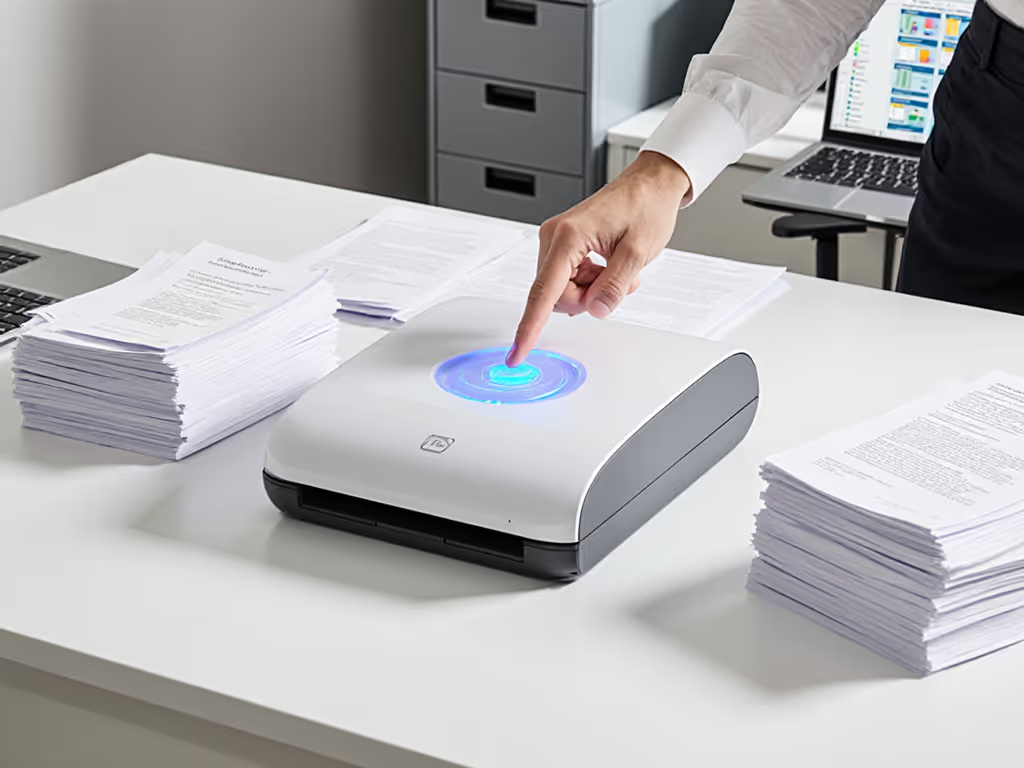
No mouse clicks. No pop-ups. No "where do I save this?" debates. If you rely on Drive, OneDrive, or a DMS, our cloud integration guide walks through reliable, click-free routing.
Step 3: Master Retail-Grade OCR (Without the Headache)
Retail documents break standard OCR. Thermal receipts fade. Product labels have tiny text. Handwritten notes bleed into margins. Yet your accountant needs to find "$27.50 espresso machine parts" in 3 seconds. To ensure receipts and labels become truly searchable, follow our reliable OCR setup. Fix this with:
- Receipt-Specific OCR Profiles: Trained on your vendors (Starbucks vs. local cafes use different layouts). Enable "ignore faint text" to skip thermal fade.
- Auto-Detected Document Types: Scans receipts → routes to
Accounts Payable; captures inventory sheets → tags withPO#andVendor. - Human-Readable PDFs: Outputs true searchable PDFs (not image-only) with PDF/A compliance for audits. Confirm this during trials (ask to search the scanned file for "return policy").
At a nonprofit intake once, volunteers spent hours rescanning stapled forms. We added barcode coversheets (one sheet per client packet) and built a one-button profile to route everything to Drive folders with OCR tags. Backlog vanished in one afternoon. Monday mornings stopped starting with apologies.
Your POS Scanning Checklist: Avoiding Costly Mistakes
Before you buy, pressure-test scanners against your reality. Skip the spec sheets, ask these workflow questions:
✅ The "Monday Morning Test"
"Can my least tech-savvy staff member scan 50 mixed documents without help?" Demand a live demo where:
- They load a stack with receipts, ID cards, and a folded inventory sheet
- They press ONE button
- They leave the room while documents scan, OCR, and file correctly
If it requires supervision, it fails.
✅ Cloud Routing Reality Check
"Will this work with my cloud stack?" Verify:
- Direct connections to Google Drive/OneDrive without intermediary apps (no "export to email first")
- Folder path auto-creation (e.g., auto-makes
Client Files/Johnson Corp/2025/Receipts) - OAuth logins so staff don't handle passwords
Red flag: If setup requires IT to configure firewall rules, it won't survive staff turnover.
✅ Jam Recovery That Doesn't Wreck Your Day
"How do I restart after a jam without redoing everything?" Insist on:
- "Resume scanning" buttons that remember processed pages
- Clear jam-clearing visuals (no hunting inside dark hatches)
- Duplex scanning that never flips pages upside down
True story: A pharmacy client lost 200 prescription labels because their scanner required restarting the entire batch after one jam. One-button profiles with memory saved them 11 hours/week.
Implementing Your Fix: Start Simple, Expand After Wins
You don't need an enterprise rollout. Start where paper pain burns hottest, usually receipts or client intake. Try this tomorrow:
- Pilot one scanner at your highest-volume register
- Create two profiles: One for receipts, one for inventory adjustments
- Train staff with a 3-step checklist:
- Fan stack, face-up
- Press [RECEIPTS] button
- Check green light before leaving
- Measure: Track time saved vs. old method for one week
When staff see 45 minutes become 7, they'll beg for the next profile. That's when you expand to client onboarding or purchase orders. But prove the value first (no exceptions).
Start simple; expand after wins. To keep uptime high after rollout, use our scanner maintenance checklist to prevent jams and misfeeds.
Why This Works When Other Solutions Fail
Most scanning guides obsess over DPI or ADF capacity. But retail teams don't fail on specs, they fail on workflow survival. Your solution must endure:
- Real-world chaos: Coffee spills, dropped receipts, rotating staff
- Zero-IT environments: Setup by office managers, not techs
- Monday morning exhaustion: When patience is lowest
That's why I reject "powerful but brittle" systems. No matter how fast your OCR is, if it requires a manual to operate, it's unusable. Choose tools where the simplest path is also the correct path.
Your Action Plan: From Paper Pile to Peace of Mind
Stop optimizing for peak performance. Optimize for minimum competence. Tomorrow:
- Grab your most chaotic stack (receipts + invoices + sticky notes)
- Time your current process from stack to searchable file
- Demand a scanner demo using that exact stack with:
- One-button scanning
- Direct cloud routing to your folder structure
- Searchable PDF output
- If it takes >2 clicks after loading paper, keep looking
Your goal isn't scanning perfection, it's consistency. When any staff member can turn chaos into order before their coffee gets cold, you've won.
Start your free scanner workflow assessment today: Audit one paper process this week. Time it. Then apply the one-button checklist above. In 30 days, you'll have hours back (and Monday mornings will start with results, not regrets).
Related Articles