
Secure Biometric Scanner Authentication: Implementation FAQ
By Mei-Ling Tan • 6th May
Introduction
Biometric scanner authentication and secure document scanning with biometrics have moved from "nice-to-have" security theater into a practical compliance requirement for regulated workflows. In healthcare, legal, and financial environments, staff must prove not only who scanned a document, but when, from which device, and with what authority. Traditional password-protected scanners and shared credentials leave audit trails full of gaps. Biometric controls (fingerprint and facial recognition) close those gaps by binding authentication directly to the person holding the device, creating an immutable, verifiable record.
However, implementing biometric authentication on document scanners is not a plug-and-play decision. The questions below reflect the concerns I see most often in my work hardening capture workflows for compliance-heavy teams: How do biometric modalities actually differ? What infrastructure do you need? Where do redundancy and error handling fit? And what happens when the technology fails (not if, but when)?
Q1: What Exactly Is Biometric Scanner Authentication, and Why Do Regulated Organizations Need It?
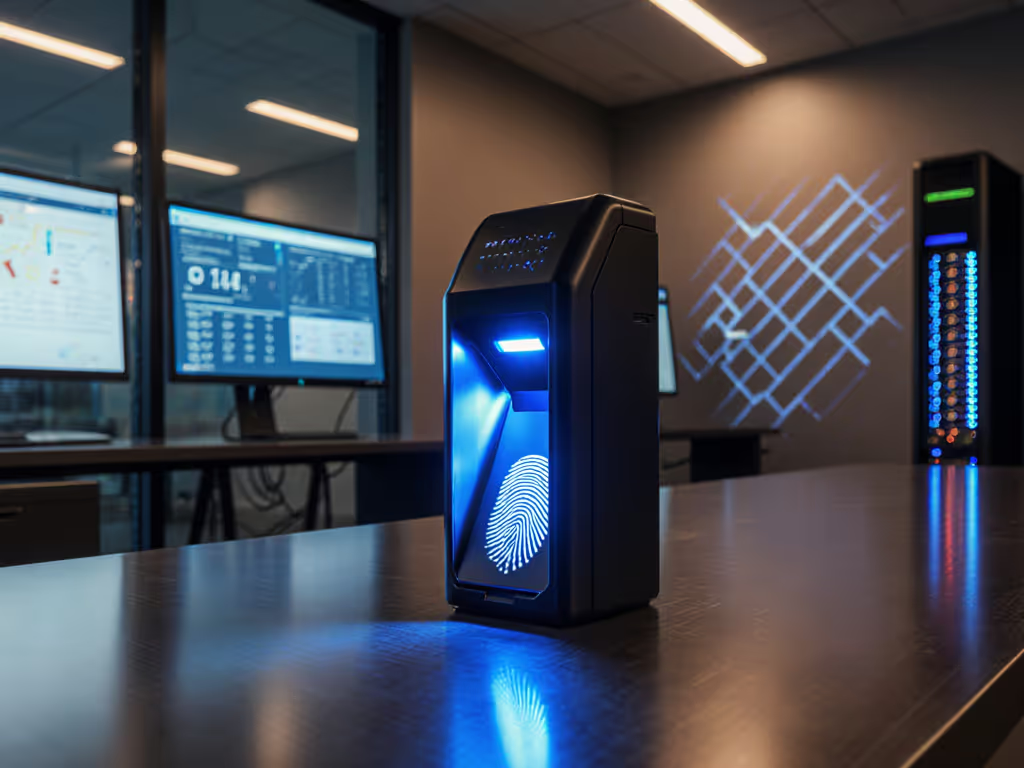
Biometric scanner authentication is the use of fingerprint, facial, or other physiological markers to verify a user's identity before that user can initiate a scan or access documents stored in a system. The scanner itself becomes a controlled device, not a public kiosk. Each authenticated scan is logged with a timestamp, user ID, and (ideally) a cryptographic proof that the identity check occurred.
For regulated organizations (healthcare providers, law firms, accounting firms), this matters because:
-
Audit readiness: Regulators (FDA, HIPAA, FINRA, state bars) increasingly expect organizations to demonstrate control over document workflows. "We know who touched this file" replaces the weaker "We assume it was handled correctly."
-
Insider risk: In practices with multiple staff members, shared credentials, or passwords written on sticky notes, mean you cannot distinguish between Alice scanning a client record and Bob doing the same. Biometrics eliminate that ambiguity.
-
Compliance evidence: When an audit happens, your system can produce a report: "On May 3, 2025, at 14:22 UTC, user Sarah Chen (credential ID 4837) initiated a duplex scan of 47 pages to SharePoint/Legal/Smith_v_Jones. Facial recognition returned a match score of 0.987. OCR index fields were extracted. A redundant copy was written to the archive path." That level of detail is what satisfies auditors.
-
Liability reduction: If a document is misfiled or accessed by the wrong person, you have proof that your process is sound. The liability shifts to the person who circumvented the control, and they cannot, because the scanner will not let them.
Reliability is a control, not a nice-to-have in regulated workflows. Once you accept that principle, biometric authentication becomes a design requirement, not an option.
Q2: How Do Fingerprint Scanner Integration and Facial Recognition Scanning Security Differ in Implementation?
Both modalities bind authentication to a person, but they operate very differently in practice, especially in small-team environments.
Fingerprint Scanner Integration
Strengths:
- Extremely fast (~1 second per user once enrolled)
- Works in varying lighting conditions
- Familiar to staff (many already use fingerprint phones)
- Small sensor footprint; can be built into the scanner chassis or a separate USB module
- Highly accurate for small populations (e.g., 10-50 staff members)
- Offline capable: enrollments and verification can happen locally on the device
Weaknesses:
- Users with wet, oily, or heavily textured hands may see intermittent failures (up to 5-10% of attempts in real-world settings)
- Latent prints on the sensor degrade accuracy over time; regular cleaning is essential
- If a user forgets or loses access to their enrolled finger, backup authentication becomes necessary
Facial Recognition Scanning Security
Strengths:
- No physical contact; entirely touchless
- Works for users with hand injuries or temporary conditions (cast, bandages)
- Can be adapted to detect "liveness" (distinguishing a live face from a photo) to prevent spoofing
- Easier for large distributed teams (multiple offices, branch locations)
- Can be tuned for higher security: three-dimensional face matching, where the user moves their head in a specific manner during authentication, adding an anti-spoofing layer
Weaknesses:
- Requires adequate lighting and clear sightline
- Slower than fingerprint (typically 2-5 seconds, including any liveness challenges)
- May see higher false-rejection rates in some demographic populations if training data is biased; requires careful enrollment and testing
- Requires a camera; privacy concerns arise if footage is retained
- More computationally expensive; may require cloud-based verification, introducing latency and network dependency
Practical Guidance
For a small legal or accounting office with stable staff (low turnover), fingerprint integration is often the faster, lower-friction choice. For a hybrid medical practice with staff across multiple locations or high turnover, facial recognition offers flexibility and no equipment learning curve.
Critical point: Do not assume one modality is "more secure." Security depends on enrollment rigor, verification strictness, false-rejection tolerance, and backup procedures. A poorly implemented facial recognition system (accepting a 99.5% confidence match) is weaker than a carefully maintained fingerprint system (with 99.9% accuracy and clean sensors).
Q3: What Are the Key Considerations for Multi-Factor Authentication for Scanners?
Multi-factor authentication for scanners means the user must prove identity through at least two independent methods before the scan is authorized and logged. Common combinations:
- Biometric + PIN: User provides fingerprint OR face, then enters a 4-6 digit code
- Biometric + RFID badge: User scans their badge and provides a fingerprint
- Biometric + SMS/email one-time code: User enrolls with fingerprint and receives a time-limited code on their phone
When Multi-Factor Is Essential
- Shared scanning devices: If a scanner is used by 20+ people or in a high-traffic area (reception, back office), multi-factor raises the bar significantly. A biometric alone can be vulnerable to spoofing (a printed photo or deepfake in rare cases); the second factor neutralizes that risk.
- High-value or sensitive workflows: HIPAA-covered entities handling PHI, law firms managing privileged attorney-client documents, and financial firms scanning large transactions should implement multi-factor for their most sensitive scans. For healthcare teams, our HIPAA-compliant scanner recommendations map required security features to real models.
- Regulatory mandate: Some compliance frameworks explicitly require multi-factor authentication for certain document classes (e.g., healthcare providers scanning billing records).
When Single-Factor Biometric Is Acceptable
- Small, stable teams: If your office has 5-10 people and you can physically see who is scanning, single-factor biometric is often sufficient, provided the device logs are monitored and the enrollment process is rigorous.
- Lower-risk content: Intake forms, marketing materials, or internal memos do not warrant multi-factor.
- Usability constraints: If your staff struggles with four authentication steps per scan, multi-factor becomes a barrier; they may circumvent it (a common failure mode). Single-factor biometric, combined with strong access controls on the output, may be more realistic and equally secure.
Implementation Trap: Combining Factors Poorly
I've seen organizations implement "biometric + password" and then watch staff write passwords on the scanner or in a shared spreadsheet. That's worse than single-factor biometric alone. Design multi-factor so the second factor is something the user has (badge, phone) or is (a second biometric modality), never something they must remember if it's easily forgotten or shared.
Q4: How Do You Establish Effective Document Access Control Systems?
Document access control systems are the policy and technical layer that sits downstream of biometric authentication. Authentication answers "Who scanned it?" Access control answers "Who can read, copy, delete, or modify it?"
Access Control Layers
- Role-based access control (RBAC): Define user roles (e.g., Senior Accountant, Junior Paralegal, Front Desk) and assign permissions to each role. Users inherit permissions from their role. Example:
- Senior Accountant: can scan, read, export, delete tax documents
- Bookkeeper: can scan, read, export tax documents (no delete)
- Front Desk: can scan only; cannot read stored documents
-
Document-level encryption: All scanned PDFs are encrypted at rest and in transit. The scanner application automatically encrypts outputs to AES-256 or equivalent. The key management system ties decryption permission to the user's biometric enrollment and role.
-
Immutable audit logs: Every access event (scan, read, export, print, email) is logged with:
- User biometric ID
- Timestamp and timezone
- Action (scan initiated, OCR completed, file exported, etc.)
- IP address and device identifier
- Success/failure status and reason (if applicable)
- Hash of the document before and after any modification
- Geo-fencing and device binding: Restrict authenticated scans to specific devices, locations, or IP ranges. A scanner in the New York office cannot suddenly be used to scan if it connects from Shanghai. This flags credential compromise or physical theft immediately.
Common Implementation Pitfall
Organizations often authenticate the scan but fail to control downstream access. Result: "The scanner verified Sarah scanned it, but now anyone in the SharePoint folder can view it, modify it, or send it to external addresses without logging." That's security theater. Biometric authentication is only the first gate; document access control is the ongoing security posture. For a prescriptive architecture, implement zero-trust scanner security with network segmentation and least-privilege access.
Q5: What's the Relationship Between Biometric Controls and Audit Trail Requirements?
This is where regulated workflows converge on a single principle: evidence over assumption.
An audit trail is a chronological, tamper-evident log of who did what, when, and with what authority. Biometric authentication is the entry point that makes the trail credible. If the scanner doesn't know who just touched it, the audit trail is weak ("User: unknown. Action: scan initiated."). If the scanner does verify a fingerprint match of 99.8%, the trail is strong ("Biometric ID: user_sarah_chen. Modality: fingerprint. Confidence: 0.998. Action: scan initiated.").
What a Compliant Audit Trail Includes
- Biometric modality and confidence score
- User enrollment metadata (when enrolled, which organizational unit, role)
- Timestamp (UTC, to the second; timezone recorded separately if local time is used)
- Device serial number and firmware version
- Source application (e.g., "ScanToShare Pro v2.11")
- Document metadata: file name, size, OCR index fields, destination path, encryption key ID
- Modification events: any changes to the document post-scan
- Attempted failures: "Fingerprint mismatch (confidence 0.22, threshold 0.95). Retry count: 1 of 3. User locked out at 14:23:45."
- Witness/approval events: if a document requires supervisor sign-off before filing, that approval is logged with the supervisor's biometric credential
Why This Matters in Practice
During a healthcare audit rehearsal, a practice faced a question: "Prove that the radiology report was scanned by an authorized technician and not edited after scanning." The challenge arose when a scanner choked on wristband labels, losing index fields during capture. That vulnerability exposed gaps in their biometric logging and sensor evaluation. After re-evaluating sensor feeds, duplex capture modes, and error logging, and introducing redundant capture paths to SharePoint with immutable audit trails, they documented every scan at multiple levels. The next audit returned zero exceptions, and staff stopped dreading inspections. The answer, now, was unambiguous: "User dr_jonathan_lee (Credential Type: facial recognition, Match: 0.996) initiated duplex scan at 08:14:22 UTC on 2025-05-01. OCR index field 'patient_id' extracted as '847291'. PDF/A-2b artifact created with SHA256 hash [long_hash]. No modifications detected post-scan. Access log shows one read event by dr_amelia_reyes at 09:01:33 UTC (authorized radiologist role)."
Q6: How Do You Prevent Common Failure Modes in Biometric Authentication Workflows?
Biometric systems are not failure-proof, and overconfidence is dangerous in regulated environments. Here are the failure modes I see most and how to mitigate them.
Failure Mode 1: Sensor Degradation
Risk: Over time, fingerprint sensors accumulate dust, oils, and debris. False-rejection rate climbs from 2% to 15%. Users become frustrated and start trying to bypass the scanner.
Mitigation:
- Schedule monthly sensor cleaning (isopropyl alcohol, soft cloth)
- Log cleaning events in the device management system
- Set alerts if false-rejection rate exceeds a threshold (e.g., >5% over a rolling week)
- Establish a backup biometric modality: "If fingerprint fails 3 times, fall back to facial recognition"
- Provide a manual override (RFID badge + manager PIN) for true emergencies, log every use
Failure Mode 2: Network Latency in Cloud-Based Verification
Risk: If your facial recognition system relies on a cloud API and the network is slow or the API is down, every scan stalls. Frustrated staff may disable biometric checking or divert to a backup uncontrolled workflow. To minimize this risk, see how edge-based document processing reduces latency and keeps sensitive data local.
Mitigation:
- Use local biometric verification whenever possible; send only the verification result to the cloud, not the full image
- Cache the last N enrollments locally so offline verification is possible
- Implement automatic fallback: if cloud verification times out after 5 seconds, accept a local match above a high threshold (e.g., 0.99)
- Monitor API latency and uptime; alert ops if SLA is breached
- Redundancy is cheaper than downtime. Have a secondary cloud provider or a local backup verification service
Failure Mode 3: Enrollment Data Loss
Risk: User enrollments (fingerprints, facial templates) are stored on the scanner or in a linked server. If that storage is corrupted or deleted, users cannot authenticate and workflow halts.
Mitigation:
- Encrypt enrollment data with AES-256 or equivalent
- Back up enrollments to a geographically redundant system (e.g., Azure Backup, AWS backup service, or a second on-premises server)
- Maintain a manual enrollment recovery procedure: staff can re-enroll in under 5 minutes with a manager present
- Test recovery annually; do not assume backups work until you have restored from one
Failure Mode 4: Spoofing and Presentation Attacks
Risk: An attacker uses a high-quality photo of an authorized user to fool facial recognition, or uses a fake fingerprint mold. (Fingerprint spoofing is rarer but not impossible.)
Mitigation:
- Use liveness detection: require the user to blink, move their head, or perform another dynamic action
- For fingerprint: use anti-spoofing detection (pressure, temperature, blood-flow sensors) if available
- Combine biometric with a second factor (PIN, badge)
- Monitor for unusual patterns: if the same user authenticates 50 times in 2 minutes from the same device, that is an attack; trigger an alert and lock the device
Failure Mode 5: Biometric Capture Failure in Real-World Conditions
Risk: A user with dry hands, a cut on a finger, or poor lighting cannot authenticate. They queue behind the scanner, frustrated, while colleagues work around it.
Mitigation:
- Provide alternative biometric modality: "Fingerprint failed? Try facial recognition."
- Allow a manager-supervised override with audit logging: "Manager approved manual authentication for user_jane_doe due to hand injury. Logged at 10:15 UTC."
- Do not penalize users for biometric failures; a repeated sense of "I am locked out of my own device" drives workarounds
- Train staff on best practices: clean hands before fingerprint, good lighting before facial, still head positioning
Q7: What Does Implementation Timeline Typically Look Like?
Most organizations underestimate the time required to deploy biometric authentication properly in a regulated environment. Here is a realistic timeline:
| Phase | Duration | Key Activities |
|---|---|---|
| Planning & Assessment | 2-4 weeks | Audit current workflows, define roles/permissions, identify biometric modalities, assess network and storage infrastructure, identify regulatory requirements |
| Procurement & Setup | 2-3 weeks | Order hardware, establish IT environment, install authentication server, deploy scanner drivers, configure encryption and backup systems |
| Pilot Enrollment | 1-2 weeks | Enroll 10-15 power users, identify enrollment issues, refine procedures, test backup biometric modality |
| Validation & Testing | 2-3 weeks | Functional testing (authentication success/failure, audit logging, access control), failure scenario testing (network outage, sensor degradation, backup modality), compliance testing (HIPAA, SOC 2, state bar rules, etc.) |
| Staff Training | 1 week | Group training sessions, one-on-one coaching, written procedures, quick-reference guides |
| Rollout | 2-4 weeks | Enroll remaining staff in phases, monitor biometric performance metrics, document any exceptions, adjust procedures based on real-world feedback |
| Post-Launch Monitoring | Ongoing | Track false-rejection rates, enrollment performance, audit log completeness, staff compliance, sensor cleanliness, backup success rates |
Total: 10-18 weeks for a typical small-to-mid-size practice. Larger organizations with distributed locations or complex integrations may require 6-9 months.
Conclusion: Security Is a Practice, Not a Product
Biometric scanner authentication is not a one-time installation. It is a continuous practice of enrollment rigor, sensor maintenance, audit log review, failure monitoring, and user enablement. The most secure biometric system will fail if staff circumvent it because it is inconvenient or if audit logs are never reviewed.
The questions in this article are entry points; your implementation will generate new questions specific to your environment, compliance obligations, and staffing. Consider engaging a qualified consultant or systems integrator who has hardened workflows in your regulatory domain (healthcare providers, law firms, or financial services firms all have different constraints and audit expectations).
As you evaluate biometric scanners and authentication architecture, focus on systems with transparent logging, stable drivers across your OS mix (Windows, Mac, Linux), robust error handling, and proven redundancy. If your fleet includes Windows on ARM devices, review our guide to ARM-compatible scanner drivers to avoid compatibility dead ends. Avoid "security through obscurity" or reliance on vendor support that is unreliable; design your workflow so that a known failure mode triggers a known, practiced recovery procedure.
Further Exploration
Review your organization's current audit findings or compliance obligations, then map those requirements to specific controls (enrollment, authentication, access, and logging). Consult NIST SP 800-76 (Biometric Data Specification Standard) for technical guidance, and reach out to professional bodies in your field (AAPA for legal, IHIA for healthcare, AICPA for finance) for their recommended practices. Schedule a technical review with your IT department or an external security assessor to identify gaps in your current document scanning and access workflows before implementing biometric controls. Document your decision drivers (why single-factor vs. multi-factor, why fingerprint vs. facial) so that future staff and auditors understand the control rationale, not just the mechanism.
Related Articles